%22%3E%3C/path%3E%3Cpath d=%22M 63.072 7.554 C 62.258 8.022 61.577 8.689 61.092 9.493 L 61.092 7.076 L 57.158 7.076 L 57.158 22.64 L 61.089 22.64 L 61.089 14.888 C 61.089 13.446 61.403 12.434 62.03 11.853 C 62.818 11.218 63.818 10.907 64.826 10.982 L 65.868 10.982 L 65.868 6.851 C 64.891 6.834 63.926 7.076 63.073 7.554 Z%22 fill=%22rgb(17,17,17)%22%3E%3C/path%3E%3Cpath d=%22M 78.916 7.82 C 76.363 6.49 73.321 6.49 70.768 7.82 C 69.562 8.473 68.564 9.451 67.888 10.644 C 67.167 11.931 66.803 13.387 66.834 14.862 C 66.804 16.332 67.157 17.785 67.86 19.077 C 68.515 20.267 69.494 21.246 70.684 21.901 C 71.924 22.576 73.318 22.92 74.73 22.898 C 76.164 22.918 77.58 22.575 78.846 21.901 C 80.062 21.247 81.073 20.27 81.768 19.077 C 82.506 17.797 82.88 16.339 82.85 14.862 C 82.88 13.389 82.517 11.934 81.797 10.647 C 81.12 9.455 80.122 8.477 78.917 7.824 M 78.803 14.862 C 78.829 15.739 78.636 16.608 78.241 17.391 C 77.903 18.046 77.38 18.588 76.738 18.95 C 76.124 19.293 75.432 19.472 74.729 19.47 C 73.668 19.497 72.648 19.061 71.934 18.276 C 71.139 17.323 70.741 16.1 70.823 14.862 C 70.741 13.62 71.149 12.395 71.959 11.45 C 72.687 10.667 73.715 10.233 74.783 10.256 C 75.859 10.236 76.894 10.67 77.635 11.45 C 78.464 12.387 78.884 13.616 78.801 14.864%22 fill=%22rgb(17,17,17)%22%3E%3C/path%3E%3Cpath d=%22M 95.906 7.076 L 95.906 15.646 C 95.975 16.68 95.643 17.701 94.979 18.498 C 94.311 19.184 93.379 19.547 92.422 19.495 C 91.475 19.544 90.553 19.18 89.894 18.498 C 89.23 17.701 88.898 16.68 88.967 15.646 L 88.967 7.076 L 85.033 7.076 L 85.033 16.207 C 85 17.449 85.275 18.68 85.834 19.79 C 86.327 20.75 87.095 21.542 88.039 22.065 C 89.033 22.594 90.145 22.861 91.271 22.838 C 92.188 22.847 93.095 22.65 93.926 22.263 C 94.708 21.905 95.388 21.36 95.906 20.675 L 95.906 22.645 L 99.865 22.645 L 99.865 7.076 Z%22 fill=%22rgb(17,17,17)%22%3E%3C/path%3E%3Cpath d=%22M 4.513 15.626 C 4.511 10.815 7.606 6.549 12.181 5.059 C 16.756 3.57 21.77 5.195 24.601 9.086 L 27.816 5.87 C 24.074 1.186 17.981 -0.943 12.137 0.393 C 6.292 1.728 1.728 6.292 0.393 12.137 C -0.943 17.981 1.186 24.074 5.87 27.816 L 9.085 24.601 C 6.214 22.512 4.515 19.177 4.513 15.626%22 fill=%22rgb(32,62,235)%22%3E%3C/path%3E%3Cpath d=%22M 17.114 14.343 L 13.354 18.01 L 13.354 18.026 L 21.071 18.026 L 11.412 27.609 L 17.389 27.609 L 23.999 21.081 L 23.999 28.316 L 24.005 28.316 L 27.967 24.393 L 27.967 14.343 Z%22 fill=%22rgb(32,62,235)%22%3E%3C/path%3E%3C/g%3E%3C/svg%3E) ×
× ××
××›
›
›
›
HubSpot to Pipedrive migration checklist 2026
HubSpot to Pipedrive migration checklist 2026
HubSpot to Pipedrive migration checklist 2026
HubSpot to Pipedrive migration checklist 2026
HubSpot to Pipedrive migration checklist 2026
HubSpot to Pipedrive migration checklist 2026

Author
Aljaz Peklaj

Most teams that move from HubSpot to Pipedrive do it for one reason: they are paying enterprise-suite money for a sales team that needs a pipeline. Done in the right order, the migration is a one-to-two-week project with zero lost deals; done ad hoc, it is a quarter of duplicate contacts and orphaned activities. This checklist covers the data mapping, the step-by-step sequence, the three migration paths, and what you gain and lose on the other side.
The pricing math behind the switch lives in our HubSpot pricing and Pipedrive pricing breakdowns; the head-to-head is in Pipedrive vs HubSpot.
TL;DR
Migrate in this order: clean and dedupe in HubSpot first, export CSVs, build your custom fields and pipelines in Pipedrive, then import Organizations, Persons, Deals, Leads, Activities, and Notes, in that sequence, linking records on email as the unique key. The DIY CSV path is free and fits most databases; Import2 handles full-history automated migration when you need emails and attachments moved; Zapier or Make keeps both CRMs in sync during a parallel-run cutover. On cost, Pipedrive runs $14-99 per seat annually versus HubSpot's per-hub, per-tier stack, so a 10-seat sales team typically cuts CRM spend by half or more. Budget one week of prep, one day of import, and one week of parallel-run verification.
Map the data before you move it
HubSpot and Pipedrive name and structure objects differently, and every migration failure we see traces back to skipping this mapping step. Pipedrive's official migration guide confirms the core translations.
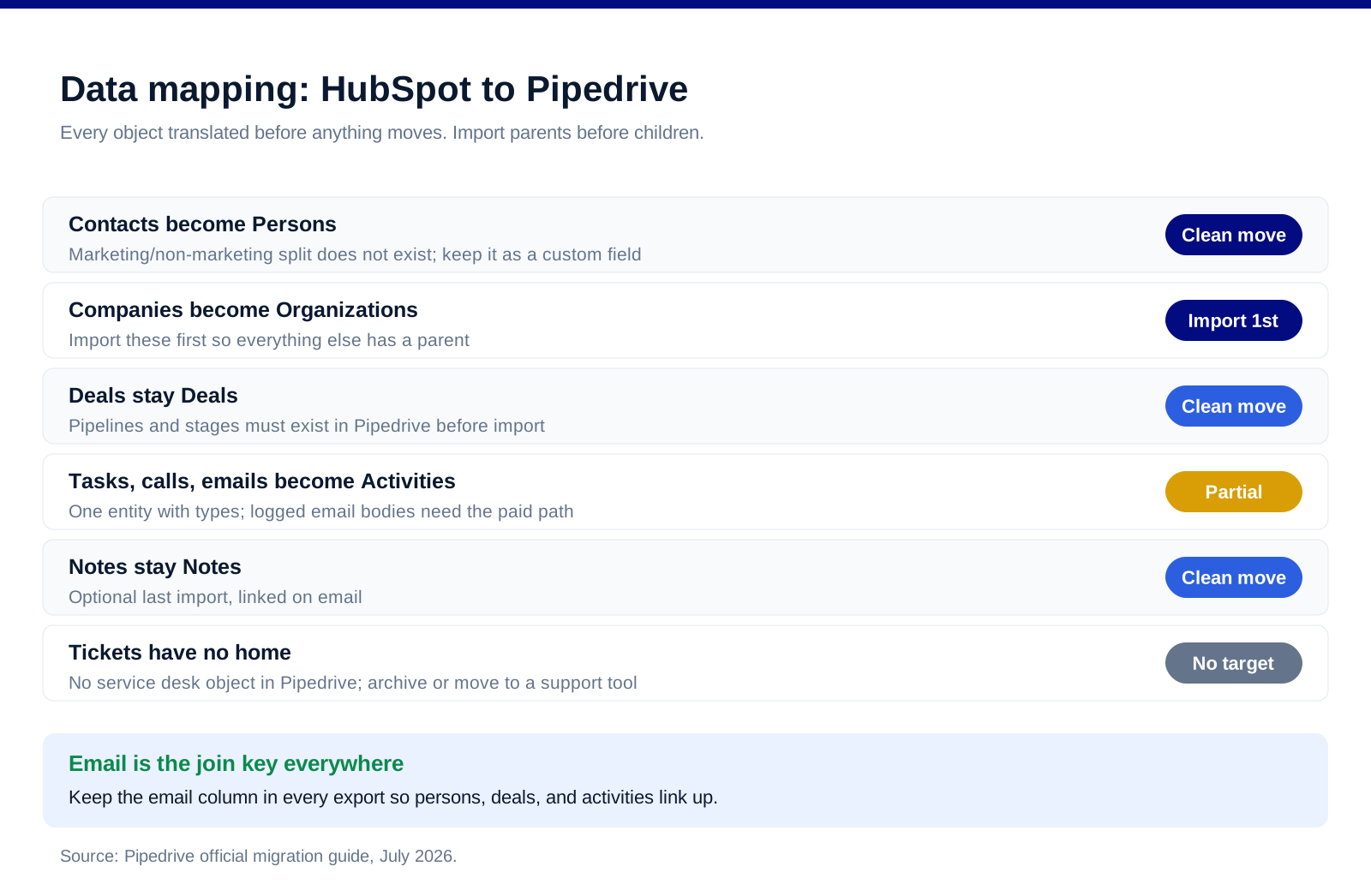
Contacts become Persons. Straight translation, but HubSpot's marketing/non-marketing contact split does not exist in Pipedrive: every imported person is just a person, so export the distinction as a custom field if your email tool needs it.
Companies become Organizations. Straight translation. Import these first so persons and deals have something to attach to.
Deals stay Deals. Pipelines and stages must exist in Pipedrive before import, and stage names should match your HubSpot pipeline one-to-one for the first quarter, so reporting stays comparable.
Tasks, calls, and emails become Activities. Pipedrive consolidates them under one entity with types. Logged email bodies do not travel via CSV: they need the automated path or stay archived in HubSpot.
Notes stay Notes, tickets have no home. Pipedrive has no service desk object. If you use Service Hub tickets, they stay behind or move to a dedicated support tool.
The 10-step checklist
Work the phases in order: prep, build, move, verify. The import order inside the move phase is the part teams get wrong most often.
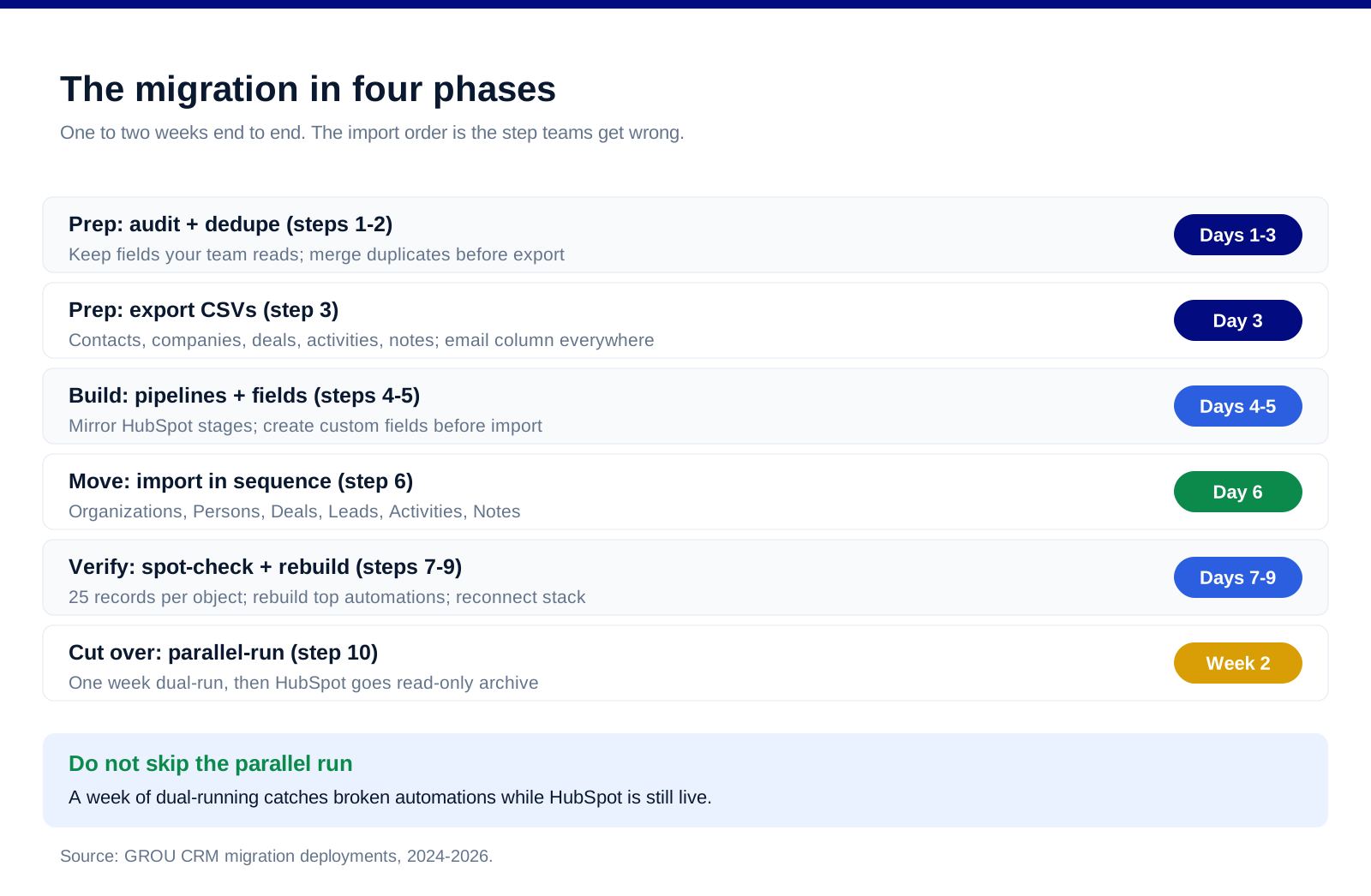
1. Audit what you actually use. List active properties, pipelines, automations, and integrations in HubSpot. Most accounts carry years of unused fields; migrate the ones with data your team reads, not all of them.
2. Dedupe and clean in HubSpot. Merge duplicate contacts and companies before export, per HubSpot's export documentation. Garbage exported is garbage imported, now with new record IDs.
3. Export CSVs. Contacts, companies, deals with pipeline and stage, activities, and notes. Include the email column everywhere: it is the join key.
4. Build pipelines and stages in Pipedrive. Mirror your HubSpot stages exactly for the first quarter.
5. Create custom fields before import. Every HubSpot property you kept needs a matching Pipedrive custom field with the right type. Creating fields during import mapping is possible and messy.
6. Import in sequence. Organizations first, then Persons, then Deals, then Leads, then Activities, then Notes, mapping fields at each step and linking on email. Pipedrive's import wizard flags unmapped columns; resolve every one before confirming.
7. Spot-check 25 records per object. Open real records and verify owners, stages, amounts, close dates, and person-organization links survived.
8. Rebuild the automations that earn their keep. Pipedrive's workflow automation covers sequences, stage-triggered tasks, and field updates on the Advanced plan and up. Rebuild the five automations your team actually relies on, not the forty HubSpot accumulated.
9. Reconnect the integration stack. Email sync, calendar, enrichment, and your outreach tools all re-authenticate against Pipedrive. Do this before go-live, not after, so activity logging never gaps.
10. Parallel-run for one week, then cut off HubSpot edit access. Keep HubSpot read-only through the downgrade notice period as an archive, and set a calendar reminder for the renewal date so the old contract does not auto-renew.
Three migration paths and when each wins
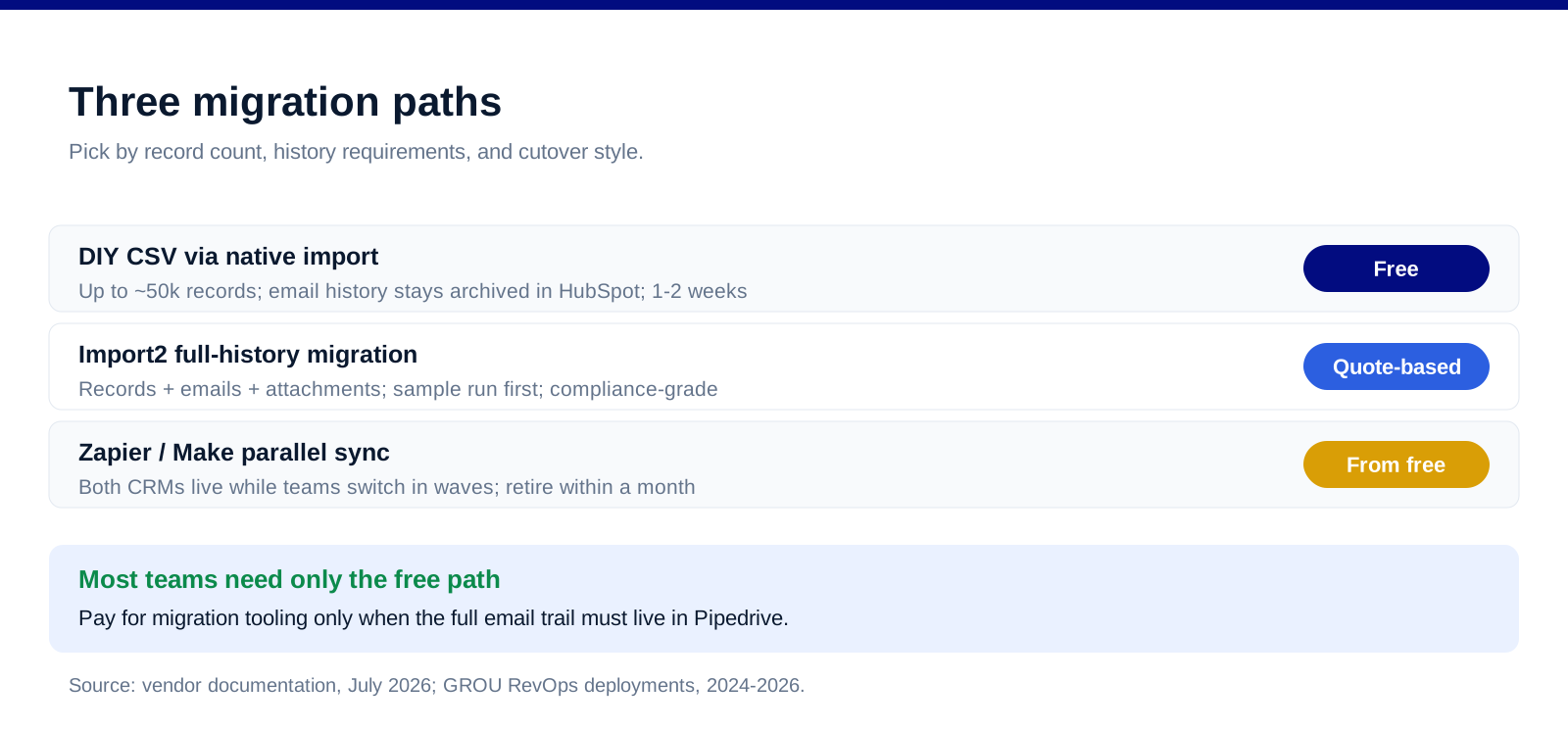
Path 1: DIY CSV (free). The sequence above, using Pipedrive's native import tool, documented in Pipedrive's CRM data migration guide. Right for databases up to roughly 50k records where logged email history can stay archived in HubSpot. One to two weeks end to end.
Path 2: Automated full-history migration (paid). Import2 moves records with their complete history, including emails and attachments, with a sample migration to verify mapping before the full run. Quote-based pricing. Right when compliance or sales continuity requires the full record trail inside Pipedrive.
Path 3: Parallel-run sync (for staged cutovers). A Zapier or Make sync keeps new records flowing into both CRMs while teams switch in waves. Right for multi-team orgs that cannot cut over in one weekend. Retire the sync within a month; permanent two-CRM setups rot.
What you gain and what you lose
The gain is focus and price. Pipedrive's plans run $14-99 per seat per year on annual billing, the pipeline UX is faster for a pure sales motion, and reps log more because the tool asks less. Most 10-seat teams land on Advanced or Professional and cut CRM spend by half or more versus a Sales Hub Professional stack, before HubSpot's per-tier add-ons.
The loss is the suite. No marketing hub, no CMS, no native ticketing, thinner attribution reporting. If marketing runs email from HubSpot today, that motion needs a new home (our email list segmentation guide covers the dedicated-tool stack), and cross-object custom reporting is simply shallower in Pipedrive. Teams that use HubSpot as a true all-in-one should read the full comparison before committing; teams paying for the suite and using the pipeline should switch and stop reading.
FAQ
How long does a HubSpot to Pipedrive migration take?
One to two weeks for the standard path: several days of cleanup and field-building, a day for the actual CSV imports, and a week of parallel-run verification. Automated full-history migrations add a sample-run cycle up front but compress the import itself.
Can I migrate from HubSpot to Pipedrive for free?
Yes. HubSpot exports CSVs on every tier and Pipedrive's native import wizard handles contacts, companies, deals, activities, and notes without paid tools. You pay only when you need logged emails and attachments moved automatically, which is Import2's territory.
Does deal history transfer from HubSpot to Pipedrive?
Deal records, stages, amounts, owners, and dates transfer cleanly via CSV. Full engagement history, logged email bodies and attachments, does not travel in CSVs: use an automated migration service to bring it, or keep HubSpot read-only as the archive.
What is the correct import order in Pipedrive?
Organizations, then Persons, then Deals, then Leads, then Activities, then Notes. Parents before children, so every later import has records to link to, with email as the unique key throughout.
Is Pipedrive cheaper than HubSpot?
For a sales-led team, substantially: Pipedrive runs $14-99 per seat per year across five plans, while comparable HubSpot Sales Hub tiers price per seat at multiples of that before add-ons. The gap narrows if you would otherwise buy separate marketing and support tools to replace the suite.
What does Pipedrive not have that HubSpot has?
Marketing automation hub, CMS, native ticketing, marketing contacts, and deeper cross-object reporting. Pipedrive covers the sales pipeline, workflow automation, and email sync, and expects marketing and support to live in dedicated tools.
Bottom line
A HubSpot to Pipedrive migration is a data project wearing a procurement decision: map objects first, clean before export, build fields before import, import parents before children, and parallel-run before cutting over. The free CSV path covers most teams, Import2 covers full-history requirements, and the reward is a CRM bill cut in half and a pipeline your reps update without being chased.
Want the migration run for you, automations rebuilt and stack rewired included? Book a call with GROU. We run RevOps and CRM migrations inside B2B revenue engines across verticals.
We are GROU, a B2B pipeline agency that runs lead generation, outbound, and LinkedIn content for clients across manufacturing, fintech, iGaming, software, and professional services. The checklist reflects our CRM migration and RevOps deployments between 2024 and 2026, anonymized to protect client confidentiality.
Some links in this article are affiliate. We may earn a small commission at no extra cost to you. We only recommend tools we've deployed for clients.
Most teams that move from HubSpot to Pipedrive do it for one reason: they are paying enterprise-suite money for a sales team that needs a pipeline. Done in the right order, the migration is a one-to-two-week project with zero lost deals; done ad hoc, it is a quarter of duplicate contacts and orphaned activities. This checklist covers the data mapping, the step-by-step sequence, the three migration paths, and what you gain and lose on the other side.
The pricing math behind the switch lives in our HubSpot pricing and Pipedrive pricing breakdowns; the head-to-head is in Pipedrive vs HubSpot.
TL;DR
Migrate in this order: clean and dedupe in HubSpot first, export CSVs, build your custom fields and pipelines in Pipedrive, then import Organizations, Persons, Deals, Leads, Activities, and Notes, in that sequence, linking records on email as the unique key. The DIY CSV path is free and fits most databases; Import2 handles full-history automated migration when you need emails and attachments moved; Zapier or Make keeps both CRMs in sync during a parallel-run cutover. On cost, Pipedrive runs $14-99 per seat annually versus HubSpot's per-hub, per-tier stack, so a 10-seat sales team typically cuts CRM spend by half or more. Budget one week of prep, one day of import, and one week of parallel-run verification.
Map the data before you move it
HubSpot and Pipedrive name and structure objects differently, and every migration failure we see traces back to skipping this mapping step. Pipedrive's official migration guide confirms the core translations.
Contacts become Persons. Straight translation, but HubSpot's marketing/non-marketing contact split does not exist in Pipedrive: every imported person is just a person, so export the distinction as a custom field if your email tool needs it.
Companies become Organizations. Straight translation. Import these first so persons and deals have something to attach to.
Deals stay Deals. Pipelines and stages must exist in Pipedrive before import, and stage names should match your HubSpot pipeline one-to-one for the first quarter, so reporting stays comparable.
Tasks, calls, and emails become Activities. Pipedrive consolidates them under one entity with types. Logged email bodies do not travel via CSV: they need the automated path or stay archived in HubSpot.
Notes stay Notes, tickets have no home. Pipedrive has no service desk object. If you use Service Hub tickets, they stay behind or move to a dedicated support tool.
The 10-step checklist
Work the phases in order: prep, build, move, verify. The import order inside the move phase is the part teams get wrong most often.
1. Audit what you actually use. List active properties, pipelines, automations, and integrations in HubSpot. Most accounts carry years of unused fields; migrate the ones with data your team reads, not all of them.
2. Dedupe and clean in HubSpot. Merge duplicate contacts and companies before export, per HubSpot's export documentation. Garbage exported is garbage imported, now with new record IDs.
3. Export CSVs. Contacts, companies, deals with pipeline and stage, activities, and notes. Include the email column everywhere: it is the join key.
4. Build pipelines and stages in Pipedrive. Mirror your HubSpot stages exactly for the first quarter.
5. Create custom fields before import. Every HubSpot property you kept needs a matching Pipedrive custom field with the right type. Creating fields during import mapping is possible and messy.
6. Import in sequence. Organizations first, then Persons, then Deals, then Leads, then Activities, then Notes, mapping fields at each step and linking on email. Pipedrive's import wizard flags unmapped columns; resolve every one before confirming.
7. Spot-check 25 records per object. Open real records and verify owners, stages, amounts, close dates, and person-organization links survived.
8. Rebuild the automations that earn their keep. Pipedrive's workflow automation covers sequences, stage-triggered tasks, and field updates on the Advanced plan and up. Rebuild the five automations your team actually relies on, not the forty HubSpot accumulated.
9. Reconnect the integration stack. Email sync, calendar, enrichment, and your outreach tools all re-authenticate against Pipedrive. Do this before go-live, not after, so activity logging never gaps.
10. Parallel-run for one week, then cut off HubSpot edit access. Keep HubSpot read-only through the downgrade notice period as an archive, and set a calendar reminder for the renewal date so the old contract does not auto-renew.
Three migration paths and when each wins
Path 1: DIY CSV (free). The sequence above, using Pipedrive's native import tool, documented in Pipedrive's CRM data migration guide. Right for databases up to roughly 50k records where logged email history can stay archived in HubSpot. One to two weeks end to end.
Path 2: Automated full-history migration (paid). Import2 moves records with their complete history, including emails and attachments, with a sample migration to verify mapping before the full run. Quote-based pricing. Right when compliance or sales continuity requires the full record trail inside Pipedrive.
Path 3: Parallel-run sync (for staged cutovers). A Zapier or Make sync keeps new records flowing into both CRMs while teams switch in waves. Right for multi-team orgs that cannot cut over in one weekend. Retire the sync within a month; permanent two-CRM setups rot.
What you gain and what you lose
The gain is focus and price. Pipedrive's plans run $14-99 per seat per year on annual billing, the pipeline UX is faster for a pure sales motion, and reps log more because the tool asks less. Most 10-seat teams land on Advanced or Professional and cut CRM spend by half or more versus a Sales Hub Professional stack, before HubSpot's per-tier add-ons.
The loss is the suite. No marketing hub, no CMS, no native ticketing, thinner attribution reporting. If marketing runs email from HubSpot today, that motion needs a new home (our email list segmentation guide covers the dedicated-tool stack), and cross-object custom reporting is simply shallower in Pipedrive. Teams that use HubSpot as a true all-in-one should read the full comparison before committing; teams paying for the suite and using the pipeline should switch and stop reading.
FAQ
How long does a HubSpot to Pipedrive migration take?
One to two weeks for the standard path: several days of cleanup and field-building, a day for the actual CSV imports, and a week of parallel-run verification. Automated full-history migrations add a sample-run cycle up front but compress the import itself.
Can I migrate from HubSpot to Pipedrive for free?
Yes. HubSpot exports CSVs on every tier and Pipedrive's native import wizard handles contacts, companies, deals, activities, and notes without paid tools. You pay only when you need logged emails and attachments moved automatically, which is Import2's territory.
Does deal history transfer from HubSpot to Pipedrive?
Deal records, stages, amounts, owners, and dates transfer cleanly via CSV. Full engagement history, logged email bodies and attachments, does not travel in CSVs: use an automated migration service to bring it, or keep HubSpot read-only as the archive.
What is the correct import order in Pipedrive?
Organizations, then Persons, then Deals, then Leads, then Activities, then Notes. Parents before children, so every later import has records to link to, with email as the unique key throughout.
Is Pipedrive cheaper than HubSpot?
For a sales-led team, substantially: Pipedrive runs $14-99 per seat per year across five plans, while comparable HubSpot Sales Hub tiers price per seat at multiples of that before add-ons. The gap narrows if you would otherwise buy separate marketing and support tools to replace the suite.
What does Pipedrive not have that HubSpot has?
Marketing automation hub, CMS, native ticketing, marketing contacts, and deeper cross-object reporting. Pipedrive covers the sales pipeline, workflow automation, and email sync, and expects marketing and support to live in dedicated tools.
Bottom line
A HubSpot to Pipedrive migration is a data project wearing a procurement decision: map objects first, clean before export, build fields before import, import parents before children, and parallel-run before cutting over. The free CSV path covers most teams, Import2 covers full-history requirements, and the reward is a CRM bill cut in half and a pipeline your reps update without being chased.
Want the migration run for you, automations rebuilt and stack rewired included? Book a call with GROU. We run RevOps and CRM migrations inside B2B revenue engines across verticals.
We are GROU, a B2B pipeline agency that runs lead generation, outbound, and LinkedIn content for clients across manufacturing, fintech, iGaming, software, and professional services. The checklist reflects our CRM migration and RevOps deployments between 2024 and 2026, anonymized to protect client confidentiality.
Some links in this article are affiliate. We may earn a small commission at no extra cost to you. We only recommend tools we've deployed for clients.
Most teams that move from HubSpot to Pipedrive do it for one reason: they are paying enterprise-suite money for a sales team that needs a pipeline. Done in the right order, the migration is a one-to-two-week project with zero lost deals; done ad hoc, it is a quarter of duplicate contacts and orphaned activities. This checklist covers the data mapping, the step-by-step sequence, the three migration paths, and what you gain and lose on the other side.
The pricing math behind the switch lives in our HubSpot pricing and Pipedrive pricing breakdowns; the head-to-head is in Pipedrive vs HubSpot.
TL;DR
Migrate in this order: clean and dedupe in HubSpot first, export CSVs, build your custom fields and pipelines in Pipedrive, then import Organizations, Persons, Deals, Leads, Activities, and Notes, in that sequence, linking records on email as the unique key. The DIY CSV path is free and fits most databases; Import2 handles full-history automated migration when you need emails and attachments moved; Zapier or Make keeps both CRMs in sync during a parallel-run cutover. On cost, Pipedrive runs $14-99 per seat annually versus HubSpot's per-hub, per-tier stack, so a 10-seat sales team typically cuts CRM spend by half or more. Budget one week of prep, one day of import, and one week of parallel-run verification.
Map the data before you move it
HubSpot and Pipedrive name and structure objects differently, and every migration failure we see traces back to skipping this mapping step. Pipedrive's official migration guide confirms the core translations.
Contacts become Persons. Straight translation, but HubSpot's marketing/non-marketing contact split does not exist in Pipedrive: every imported person is just a person, so export the distinction as a custom field if your email tool needs it.
Companies become Organizations. Straight translation. Import these first so persons and deals have something to attach to.
Deals stay Deals. Pipelines and stages must exist in Pipedrive before import, and stage names should match your HubSpot pipeline one-to-one for the first quarter, so reporting stays comparable.
Tasks, calls, and emails become Activities. Pipedrive consolidates them under one entity with types. Logged email bodies do not travel via CSV: they need the automated path or stay archived in HubSpot.
Notes stay Notes, tickets have no home. Pipedrive has no service desk object. If you use Service Hub tickets, they stay behind or move to a dedicated support tool.
The 10-step checklist
Work the phases in order: prep, build, move, verify. The import order inside the move phase is the part teams get wrong most often.
1. Audit what you actually use. List active properties, pipelines, automations, and integrations in HubSpot. Most accounts carry years of unused fields; migrate the ones with data your team reads, not all of them.
2. Dedupe and clean in HubSpot. Merge duplicate contacts and companies before export, per HubSpot's export documentation. Garbage exported is garbage imported, now with new record IDs.
3. Export CSVs. Contacts, companies, deals with pipeline and stage, activities, and notes. Include the email column everywhere: it is the join key.
4. Build pipelines and stages in Pipedrive. Mirror your HubSpot stages exactly for the first quarter.
5. Create custom fields before import. Every HubSpot property you kept needs a matching Pipedrive custom field with the right type. Creating fields during import mapping is possible and messy.
6. Import in sequence. Organizations first, then Persons, then Deals, then Leads, then Activities, then Notes, mapping fields at each step and linking on email. Pipedrive's import wizard flags unmapped columns; resolve every one before confirming.
7. Spot-check 25 records per object. Open real records and verify owners, stages, amounts, close dates, and person-organization links survived.
8. Rebuild the automations that earn their keep. Pipedrive's workflow automation covers sequences, stage-triggered tasks, and field updates on the Advanced plan and up. Rebuild the five automations your team actually relies on, not the forty HubSpot accumulated.
9. Reconnect the integration stack. Email sync, calendar, enrichment, and your outreach tools all re-authenticate against Pipedrive. Do this before go-live, not after, so activity logging never gaps.
10. Parallel-run for one week, then cut off HubSpot edit access. Keep HubSpot read-only through the downgrade notice period as an archive, and set a calendar reminder for the renewal date so the old contract does not auto-renew.
Three migration paths and when each wins
Path 1: DIY CSV (free). The sequence above, using Pipedrive's native import tool, documented in Pipedrive's CRM data migration guide. Right for databases up to roughly 50k records where logged email history can stay archived in HubSpot. One to two weeks end to end.
Path 2: Automated full-history migration (paid). Import2 moves records with their complete history, including emails and attachments, with a sample migration to verify mapping before the full run. Quote-based pricing. Right when compliance or sales continuity requires the full record trail inside Pipedrive.
Path 3: Parallel-run sync (for staged cutovers). A Zapier or Make sync keeps new records flowing into both CRMs while teams switch in waves. Right for multi-team orgs that cannot cut over in one weekend. Retire the sync within a month; permanent two-CRM setups rot.
What you gain and what you lose
The gain is focus and price. Pipedrive's plans run $14-99 per seat per year on annual billing, the pipeline UX is faster for a pure sales motion, and reps log more because the tool asks less. Most 10-seat teams land on Advanced or Professional and cut CRM spend by half or more versus a Sales Hub Professional stack, before HubSpot's per-tier add-ons.
The loss is the suite. No marketing hub, no CMS, no native ticketing, thinner attribution reporting. If marketing runs email from HubSpot today, that motion needs a new home (our email list segmentation guide covers the dedicated-tool stack), and cross-object custom reporting is simply shallower in Pipedrive. Teams that use HubSpot as a true all-in-one should read the full comparison before committing; teams paying for the suite and using the pipeline should switch and stop reading.
FAQ
How long does a HubSpot to Pipedrive migration take?
One to two weeks for the standard path: several days of cleanup and field-building, a day for the actual CSV imports, and a week of parallel-run verification. Automated full-history migrations add a sample-run cycle up front but compress the import itself.
Can I migrate from HubSpot to Pipedrive for free?
Yes. HubSpot exports CSVs on every tier and Pipedrive's native import wizard handles contacts, companies, deals, activities, and notes without paid tools. You pay only when you need logged emails and attachments moved automatically, which is Import2's territory.
Does deal history transfer from HubSpot to Pipedrive?
Deal records, stages, amounts, owners, and dates transfer cleanly via CSV. Full engagement history, logged email bodies and attachments, does not travel in CSVs: use an automated migration service to bring it, or keep HubSpot read-only as the archive.
What is the correct import order in Pipedrive?
Organizations, then Persons, then Deals, then Leads, then Activities, then Notes. Parents before children, so every later import has records to link to, with email as the unique key throughout.
Is Pipedrive cheaper than HubSpot?
For a sales-led team, substantially: Pipedrive runs $14-99 per seat per year across five plans, while comparable HubSpot Sales Hub tiers price per seat at multiples of that before add-ons. The gap narrows if you would otherwise buy separate marketing and support tools to replace the suite.
What does Pipedrive not have that HubSpot has?
Marketing automation hub, CMS, native ticketing, marketing contacts, and deeper cross-object reporting. Pipedrive covers the sales pipeline, workflow automation, and email sync, and expects marketing and support to live in dedicated tools.
Bottom line
A HubSpot to Pipedrive migration is a data project wearing a procurement decision: map objects first, clean before export, build fields before import, import parents before children, and parallel-run before cutting over. The free CSV path covers most teams, Import2 covers full-history requirements, and the reward is a CRM bill cut in half and a pipeline your reps update without being chased.
Want the migration run for you, automations rebuilt and stack rewired included? Book a call with GROU. We run RevOps and CRM migrations inside B2B revenue engines across verticals.
We are GROU, a B2B pipeline agency that runs lead generation, outbound, and LinkedIn content for clients across manufacturing, fintech, iGaming, software, and professional services. The checklist reflects our CRM migration and RevOps deployments between 2024 and 2026, anonymized to protect client confidentiality.
Some links in this article are affiliate. We may earn a small commission at no extra cost to you. We only recommend tools we've deployed for clients.

Pipeline OS Newsletter
Build qualified pipeline
Get weekly tactics to generate demand, improve lead quality, and book more meetings.





Trusted by industry leaders
Trusted by industry leaders
Trusted by industry leaders
Ready to build qualified pipeline?
Ready to build qualified pipeline?
Ready to build qualified pipeline?
Book a call to see if we're the right fit, or take the 2-minute quiz to get a clear starting point.
Book a call to see if we're the right fit, or take the 2-minute quiz to get a clear starting point.
Book a call to see if we're the right fit, or take the 2-minute quiz to get a clear starting point.
" height="30.21639343089746px" id="hfGbXmQR2" width="30.216393430897455px"/></svg>)
Copyright © 2026 – All Right Reserved
Copyright © 2026 – All Right Reserved
Copyright © 2026 – All Right Reserved